How to Use
Install & Run SilentAssist AI
Set up the desktop app on macOS or Windows in a couple of minutes — then control everything with a few keyboard shortcuts.
macOS 13+ · Windows 10/11 · Free to install
Installation
Pick your operating system.
- Step 1
Download for macOS
Grab the .dmg installer (works on Apple Silicon and Intel Macs).
- Step 2
Drag to Applications
Open the .dmg and drag SilentAssist AI into your Applications folder.
- Step 3
Launch the app
Open it from Applications. The window is frameless and floats above everything.
- Step 4
Grant recording permission
On first use, macOS asks for Screen & System Audio Recording. Allow it, then quit (⌘Q) and reopen once.
Open It the First Time
SilentAssist AI isn't signed with an Apple Developer ID yet, so macOS blocks the very first launch. Here's how to open it — you only do this once.
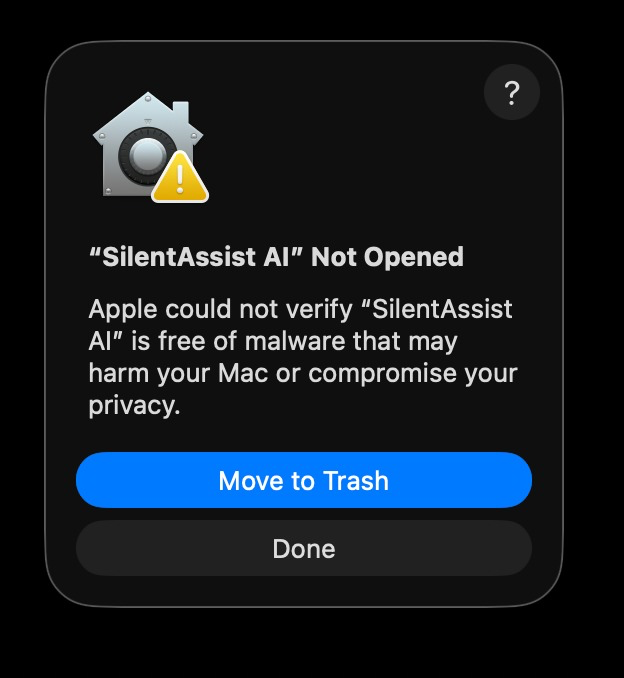
“Not Opened”? Click Done
macOS shows this the first time you open the app. Click Done to dismiss it — not Move to Trash (that deletes the app).
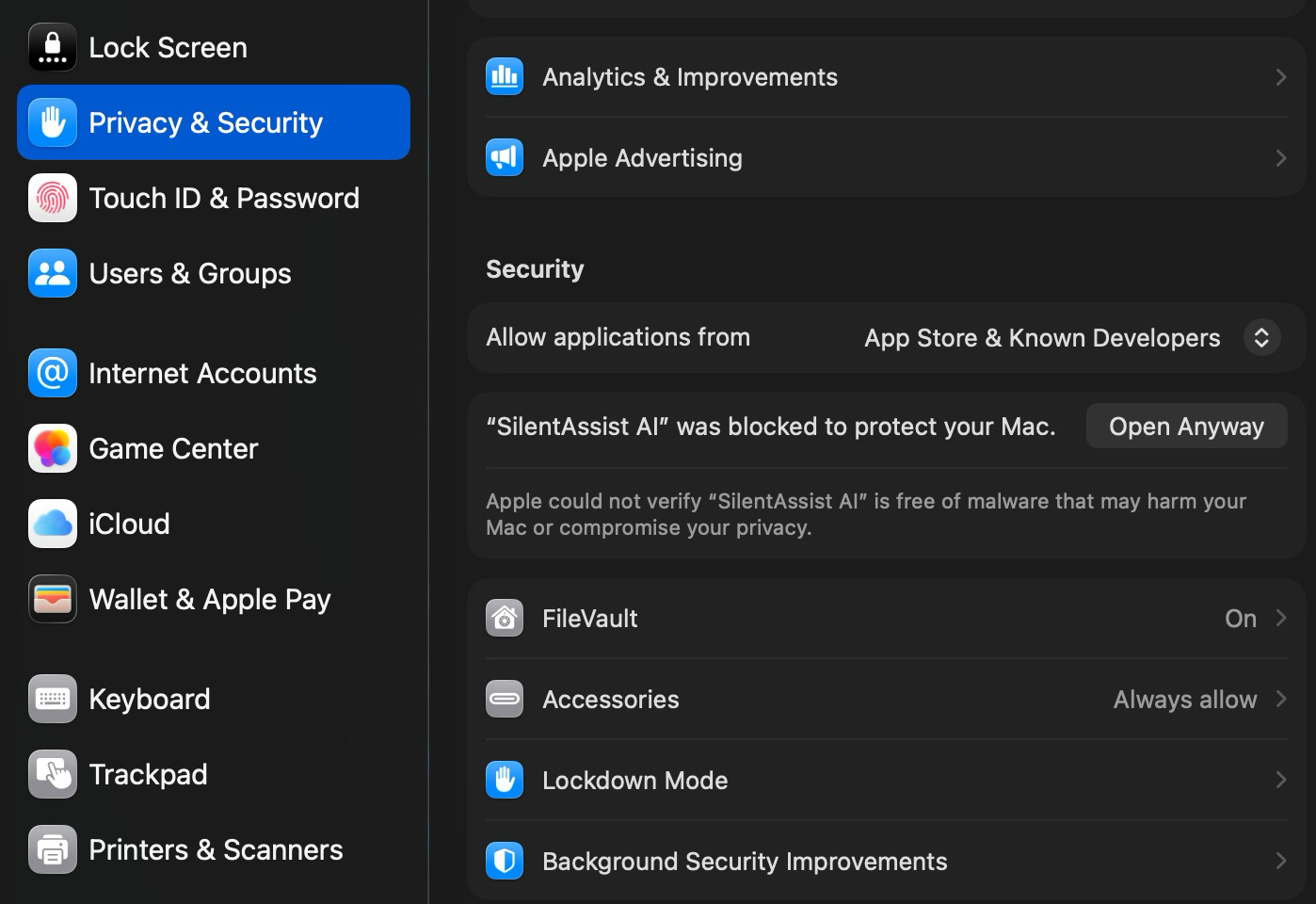
Open Anyway to install
Open System Settings → Privacy & Security, scroll down to Security, and click Open Anyway.
One-Time Permission Setup
macOS asks for permission the first time the app captures your screen or meeting audio. You only do this once.
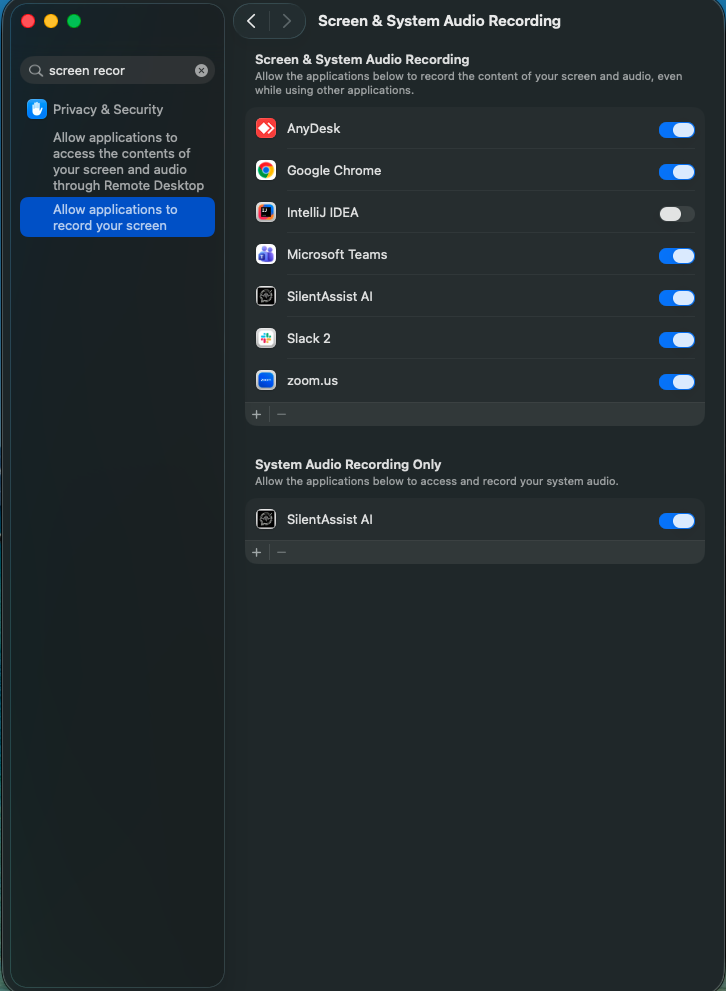
Screen & System Audio Recording
Powers two features: capturing a screenshot for context, and listening to meeting / call audio (the other person's voice), not just your microphone.
- Open System Settings → Privacy & Security → Screen & System Audio Recording
- Toggle SilentAssist AI on
- Quit (⌘ Q) and reopen the app
Invisible on screen shares
SilentAssist hides itself from screen sharing and recording on Zoom, Google Meet, and Teams — it stays on your screen, but others on the call can't see it.
Use ⌘+⇧+Space to instantly hide or show the window whenever you need to.
Screen & System Audio Recording
Powers screenshots and meeting-audio capture. Turn SilentAssist AI on in both lists.
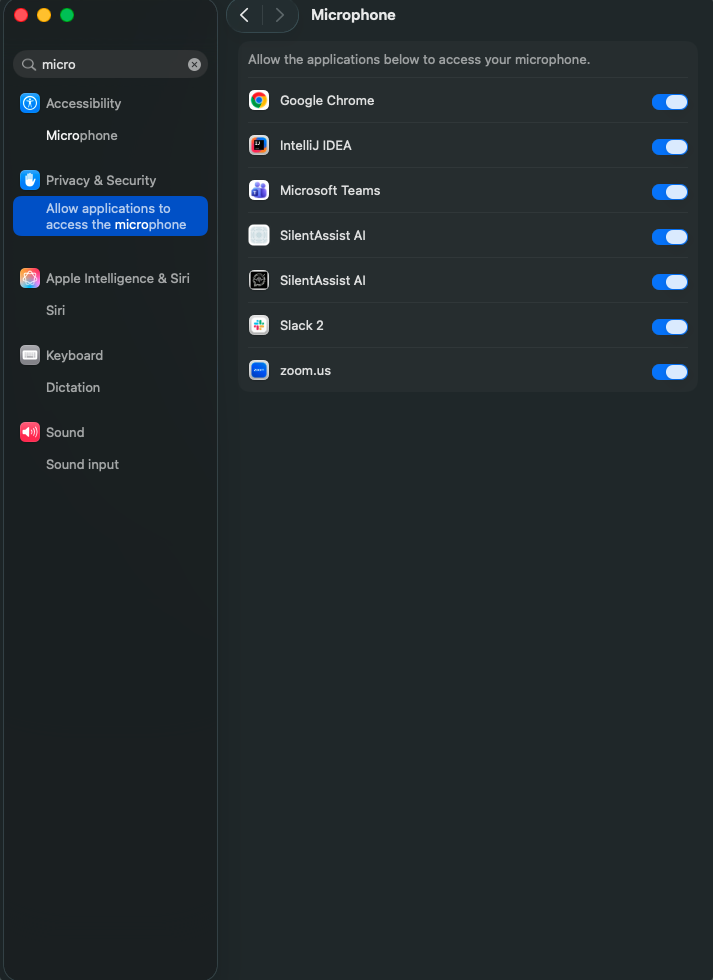
Microphone
Lets the app hear your voice when you speak. Turn SilentAssist AI on for every row.
Get to Know the Window
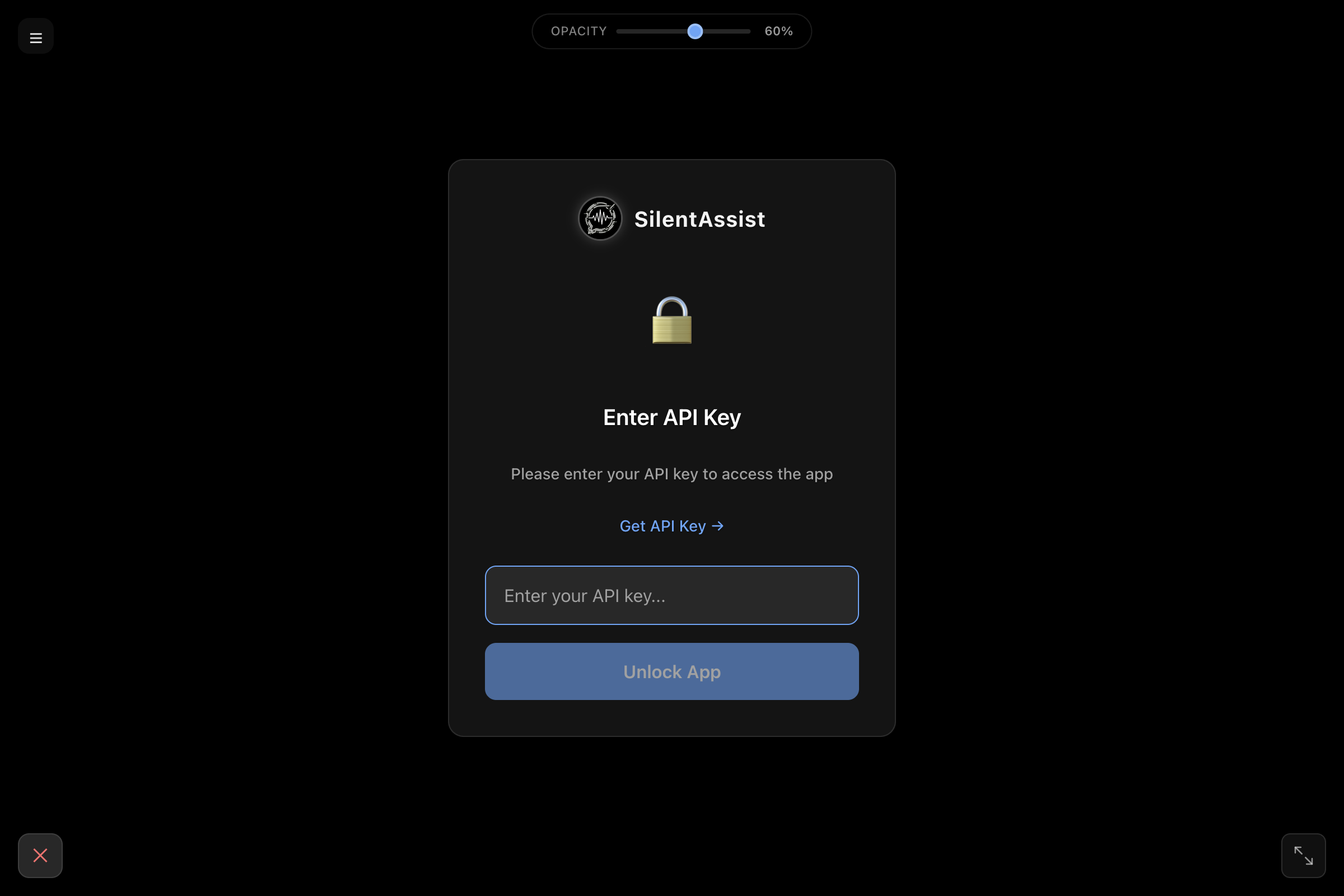
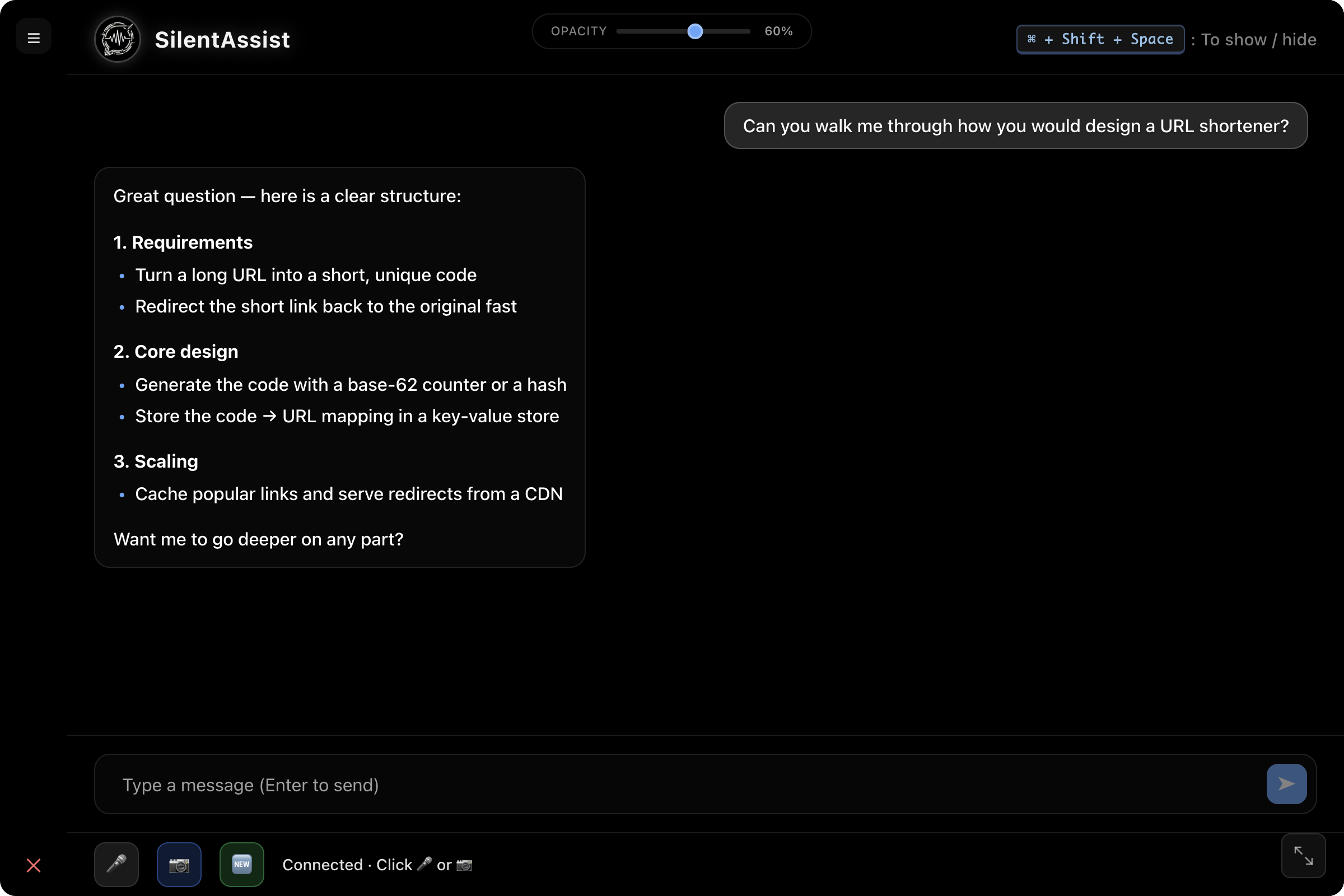
The app is a small floating window with no title bar. Here's every control, labelled.
1. Unlock with your API token
2. The main window
Keyboard Shortcuts
These work globally — even when the app is hidden.
Ready to go?
Generate a token from your dashboard, paste it into the app, and start your session.